Overview
This article clarifies how MailEssentials handles DKIM signatures and if there's a possibility to add a DKIM signature to outgoing emails passing through MailEssentials.
Information
DomainKeys Identified Mail (DKIM) is an email authentication method designed to detect forged sender addresses in emails (email spoofing), a technique often used in phishing and email spam.
Inbound or outbound emails with a DKIM signature do not interfere with the regular processing in MailEssentials. MailEssentials sees the DKIM signature in the email header but treats the email just like a regular email. The DKIM signature is only in the header and does not affect the email processing in any way.
Scanning process
In order to scan emails so as to filter out Spam and block Virus infected messages, MailEssentials retrieves the emails (DKIM or non-DKIM) from either the mail flow directly (while the mail server is receiving or sending) or from the Exchange Information Store (to scan already received and saved emails for viruses).
Regardless of the email sources mentioned above, the scanning process is always the same as illustrated below:
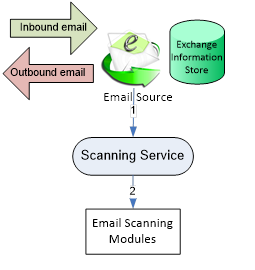
- The source retrieves the email and loads the Scanning Service to provide a copy of the email for scanning
- The Scanning Service loads modules to scan the email for particular properties
Adding a DKIM signature to outbound emails
GFI MailEssentials 22.2 introduced built-in DKIM signing for outbound email. On 22.2 and later, DKIM signing is configured directly in the MailEssentials configuration console under EmailSecurity > Outgoing Emails, and no external signing component is required.
On versions earlier than 22.2, this capability is not available. In that case DKIM signing must be handled externally by the mail server, which should insert the DKIM signature prior to sending the email to MailEssentials.
Key points when configuring DKIM signing (22.2 and later)
- DKIM signing is configured per domain. Repeat the configuration for each domain you want to sign, then enable each domain in the domain list.
- The DKIM selector is fixed to
defaultand cannot be changed in the configuration console. The DNS TXT record must therefore be published asdefault._domainkey.yourdomain.com. - The signing key is supplied either from the Windows Certificate Store (an RSA certificate holding an exportable private key, located in
Cert:\LocalMachine\My) or imported as an unencrypted PEM private key file. - The key must be RSA, 2048 to 4096 bits. Signatures are generated using RSA-SHA256.
- The From header is always signed. The To, Subject, Date and Message-ID headers may additionally be selected for signing.
- A domain cannot be enabled for signing until a private key has been selected or imported for it.
- Any processing that modifies the message body or headers (a disclaimer, for example) must take place before signing, otherwise the resulting signature will not validate.
Full step-by-step instructions, including PowerShell and OpenSSL commands for generating the signing key, the DNS TXT record format, validation steps and troubleshooting, are available in the GFI MailEssentials - DKIM Configuration Guide (PDF).
Verifying that outbound signing is working
Send a test message from a configured domain to an external mailbox and inspect the delivered message headers. A correctly signed and validated message carries a DKIM-Signature header containing d= followed by your domain and s=default, together with an Authentication-Results header reporting dkim=pass. Confirm signing from the delivered message headers rather than relying on the status shown in the console.
Support for DKIM validation within MailEssentials is currently an open feature request that customers can contribute to through the GFI users forum at Support for DKIM.
Priyanka Bhotika
Comments