Overview
If mail flow stops after installing GFI MailEssentials on an Exchange Edge Transport server, the built-in MailEssentials SMTP relay may be taking ownership of TCP port 25. In that state, Microsoft Exchange Transport cannot keep its SMTP listener active, and messages placed in the Pickup folder are never processed. This article explains why this happens and provides a validated workaround: back up the MailEssentials registry configuration, set use_local_smtp to 0 so Exchange owns the SMTP listener, restart the services in the correct order, and verify that mail flow resumes.
| Product | GFI MailEssentials 22.4 |
| Applies To | Microsoft Exchange Edge Transport Server (Exchange 2016/2019, V15 transport role); offline/air-gapped deployments |
In this article
- Overview
- Expected Mail Flow Architecture
- Problem
- Why This Happens
- Prerequisites
- Solution
- Escalation Path
- Verification
- Preventive Guidance
Expected Mail Flow Architecture
Before troubleshooting the failure, it helps to see how mail is supposed to move through an Exchange Edge Transport server running GFI MailEssentials.
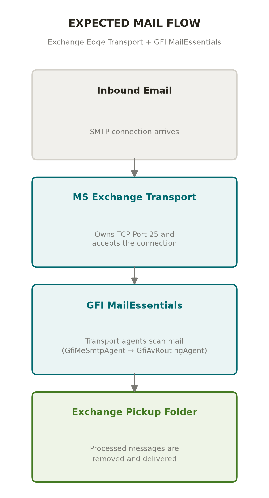
Figure 1. Expected mail flow — Exchange Transport owns Port 25; GFI MailEssentials scans mail via transport agents.
Problem
After installing GFI MailEssentials on an Exchange Edge Transport server, messages dropped into the Exchange Pickup folder remain there and are never processed.
Symptoms
- Microsoft Exchange Transport starts and then stops shortly afterward.
- Files placed in the Exchange Pickup folder remain in place and do not drain.
- Mail flow works before MailEssentials is installed, then fails after installation.
- The issue is sometimes misread as a TLS or SSL problem, but the validated cause is different.
Why This Happens
The root cause is a TCP port ownership conflict, not a certificate or TLS/SSL issue. When the built-in MailEssentials SMTP relay (smtprelay.exe) claims port 25 first, Microsoft Exchange Transport cannot bind to the port and stops shortly after startup. Because Exchange Transport is not running, files placed in the Pickup folder are never picked up or processed.
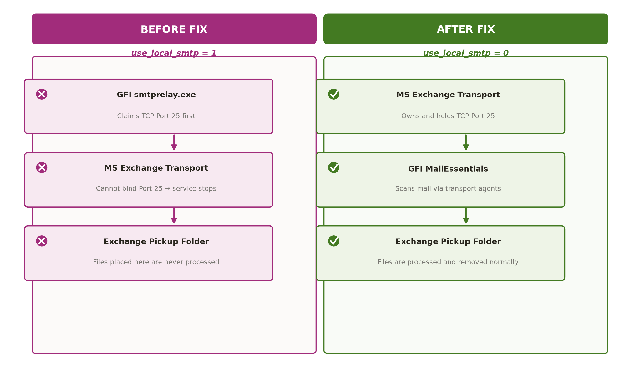
Figure 2. Port ownership before and after applying the fix.
COMMON MISDIAGNOSIS: This symptom is frequently mistaken for a TLS/SSL certificate problem because Exchange Transport failing to stay up can resemble a secure-connection failure. Always confirm port 25 ownership before investigating certificates. If a third-party transport agent or security toolset is also installed on the server, removing it is a reasonable isolation step, but it does not rule out this port conflict — in a resolved case, Exchange Transport continued to start and stop even after a third-party toolset was fully removed, because the underlying cause was still port 25 ownership.
Prerequisites
- Administrative access to the affected Windows server
- Permission to edit the Windows registry
- Permission to restart Windows services
Solution
Step 1: Back up the MailEssentials configuration registry key
Open Registry Editor as an administrator and locate the MailEssentials configuration key:
HKEY_LOCAL_MACHINE\SOFTWARE\Wow6432Node\GFI\MailEssentials\ConfigIf that path is not present, check:
HKEY_LOCAL_MACHINE\SOFTWARE\GFI\MailEssentials\ConfigRight-click the Config key and select Export to create a backup before making changes.
Expected result: You have a restorable backup of the current MailEssentials configuration.
Step 2: Change the SMTP relay mode
In the same registry location, find the DWORD value use_local_smtp and set it to 0.
A value of 1 activates the MailEssentials built-in SMTP Relay (smtprelay.exe), introduced in MailEssentials 22 to remove dependency on the legacy IIS SMTP service on servers with no existing SMTP transport. On an Exchange server, Exchange must own the SMTP listener, so this key must be set to 0. This switches MailEssentials away from the built-in local SMTP relay and allows Exchange to use its own SMTP transport path (Exchange SMTP mode).
Expected result: The server is configured to use the IIS/Exchange SMTP path instead of the MailEssentials built-in relay.
Step 3: Restart services in the correct order
- Restart GFI MailEssentials Attendant first.
- Then start Microsoft Exchange Transport.
The order matters because Exchange must reclaim and keep ownership of the SMTP listener.
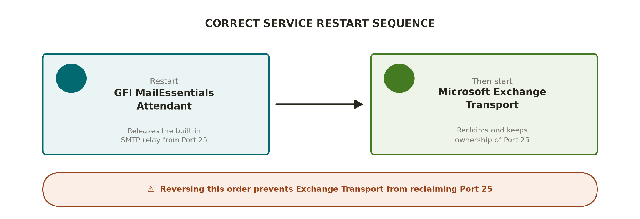
Figure 3. Correct service restart sequence.
Expected result: Both services start successfully and remain running.
Step 4: Confirm the services are running
Run the following PowerShell command:
Get-Service gfimesattendant,MSExchangeTransport | Format-Table Name,StatusExpected result: Both services show a status of Running.
Step 5: Confirm the built-in relay is not running
Run the following PowerShell command:
Get-Process smtprelay -ErrorAction SilentlyContinueExpected result: No active smtprelay process is returned.
Step 6: Test Pickup-folder processing
Place a single test .eml file in the Exchange Pickup folder:
C:\Program Files\Microsoft\Exchange Server\V15\TransportRoles\PickupExpected result: The file is removed from the Pickup folder and mail flow resumes normally.
Verification
Confirm the following before considering the issue resolved:
- Microsoft Exchange Transport remains running after startup.
smtprelay.exeis not running on the server.- A test message placed in the Pickup folder is processed and removed.
- Normal mail flow resumes.
Preventive Guidance
After any future MailEssentials update, repair, or reinstall, verify that the server still uses the correct SMTP mode for Exchange:
- Confirm
use_local_smtp = 0 - Confirm GFI MailEssentials Attendant is running
- Confirm Microsoft Exchange Transport is running
- Confirm
smtprelay.exeis not running
WHY THIS MATTERS: If the built-in MailEssentials relay takes TCP port 25 on an Exchange server, Exchange Transport can stop and the Pickup folder will not drain. Re-checking this configuration after every update, repair, or reinstall prevents the issue from silently returning.
Ciprian Nastase
Comments