Overview
After renewing your subscription and obtaining a new license key, you apply it in the Licensing section of MailEssentials and get a "License key could not be verified" error.
Solution

Upgrading to a major release of any GFI product (for example, from version 20.x to 21.x) requires updating your license key through the GFI Accounts Portal. However, upgrading to a minor release (for example, from version 21.5 to 21.6) does not require updating to a new license key to continue using the product.
If you are unable to log in to the GFI Accounts Portal, retrieve your credentials by following the password recovery steps described in this article: Obtaining Your GFI License Key.
When the installed software version does not accept the license key due to a license verification error, follow these steps to resolve the issue:
- License Keys are unique to each product version. If you upgrade to a new Version (new Builds or Service Releases do not require a new key), you must log in to the GFI Accounts Portal and obtain an upgraded key for the new version as described in Upgrading License Keys for GFI Products. (Exception: GFI MailEssentials v21 keys are valid for v22 installations — do not treat this specific transition as a version mismatch requiring a new key.)
- License keys are case sensitive. Ensure that you are copying and pasting the License Key from the License Certificate. Also, make sure there are no spaces before or after the key.
- Check that all GFI Product Services are running. At times, the license may depend on certain GFI MailEssentals services; if they are stopped, the license verification will fail.
- Rule out a corrupted or incomplete installer download, or leftover state from a previous install attempt. If the key is already confirmed valid for the version being installed (see the exception above for v21/v22), re-download a fresh copy of the installer, reboot the server to clear any locked files from a prior attempt, and re-enter the key by copy-pasting it directly rather than retyping it, to rule out a transcription error.
If the above steps do not resolve your issue, it is highly possible that the License Key does not match the version of the software you have installed on your system. (Before proceeding, confirm this is actually the case for your product/version combination — see the exception noted above for GFI MailEssentials v21 keys on v22 installs, which are not a mismatch.)
- Obtain your current version by navigating to GFI MailEssentials > General Settings > About as described in Checking the Current build version information.
- Verify that the License matches your Software Version:
- Log in to the GFI Accounts Portal.
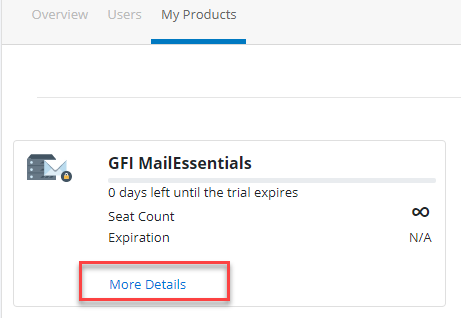
- Navigate to Purchased Products then, under My Products, click on More Details to retrieve the license key for GFI MailEssentials.
- Verify if the license key you are entering matches the version of the installed software obtained from Step 1:
- If the license does not match the version installed, you can either upgrade your software to the compatible version which you are licensed for or submit a request via the GFI Customer Care Center to request a downgrade of your License Key relevant to the version you have currently installed on your system. (Exception: do not request an upgrade/downgrade for a GFI MailEssentials v21 key being used on a v22 install — this combination is valid; see the note above.)
- If the version of the Software matches the version of the License Key, please contact GFI Support by submitting a request at the Customer Support portal.
Priyanka Bhotika
Comments